


What this notification is
If you use Enhanced Email, you may receive an automated message warning you that your mailbox is approaching its storage limit. This is a legitimate, system-generated notification, not spam or a phishing attempt. It is sent automatically to help you avoid an interruption in receiving new email.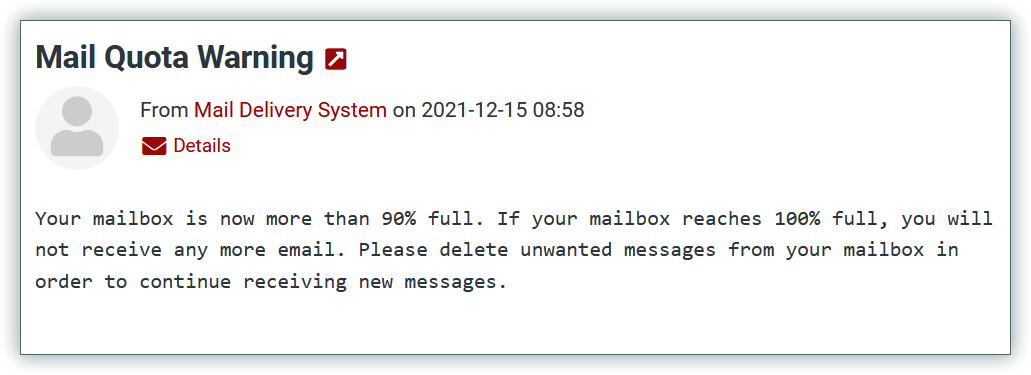
How to identify the genuine notification
The authentic notification has the following characteristics:
- Subject: Mail Quota Warning
- From: Mail Delivery System <postmaster@hostedemail.com>
- Reply-To: support@hostedemail.com
The body of the message warns that your mailbox is more than 90% full and advises that, once it reaches 100% capacity, you will no longer be able to receive new email. It asks you to remove unwanted messages so that delivery can continue.
(The screenshot attached to the ticket shows this exact warning and should be embedded in the published article as a visual reference.)
Why you're receiving it
Every Enhanced Email mailbox has a storage limit. As email messages accumulate, especially those with large attachments — the mailbox fills up. When usage crosses the 90% threshold, the system sends this warning so you can act before reaching the limit.
Is it safe? (Phishing check)
Yes, this is a safe and expected message. Because phishing emails sometimes imitate storage or quota warnings, it's worth confirming the sender details above match before acting. The genuine notification only asks you to free up space within your own mailbox; it will never ask you to enter your password, click an external login link, or provide payment or personal information. If a message claiming to be a quota warning asks for any of those things, treat it as suspicious and do not respond.
What you should do
To clear the warning and keep receiving email, reduce your mailbox usage:
- Delete unwanted or old messages, prioritizing emails with large attachments.
- Empty your Trash/Deleted Items folder, since messages there can still count toward your quota.
- Check other folders such as Sent and Junk/Spam, which also use storage.
- If you regularly hit the limit, consider archiving older mail locally or asking your provider about additional storage.
If you reach 100%
Once a mailbox is completely full, incoming messages may be delayed or bounced back to senders until space is freed. Clearing space as described above restores normal delivery.
How helpful was this article?
Thanks for your feedback!
Do you still need help? If so please submit a request here.